
How to create an Interactive Ad?
Interactive HTML5 ads are interactive creatives that let users engage with content directly inside the banner, such as tapping, swiping, or playing a game. In-banner interactions remain within the ad, while the final CTA takes the user to the campaign’s Click URL. Unlike regular HTML5 ads, the entire banner is not a single click-through area.
1
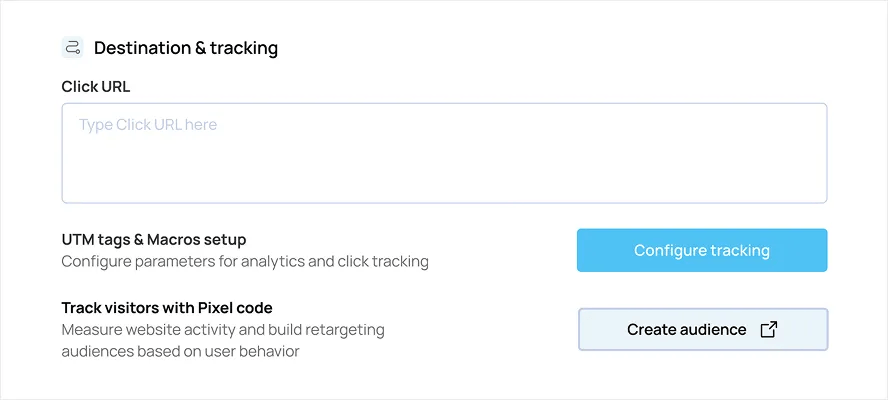
Add the full Click URL of your business website. It is recommended that you include UTM tags for tracking. You can use our UTM builder that automatically attaches a tracking code to your URL. For more information check this video guide on creating UTM.
2
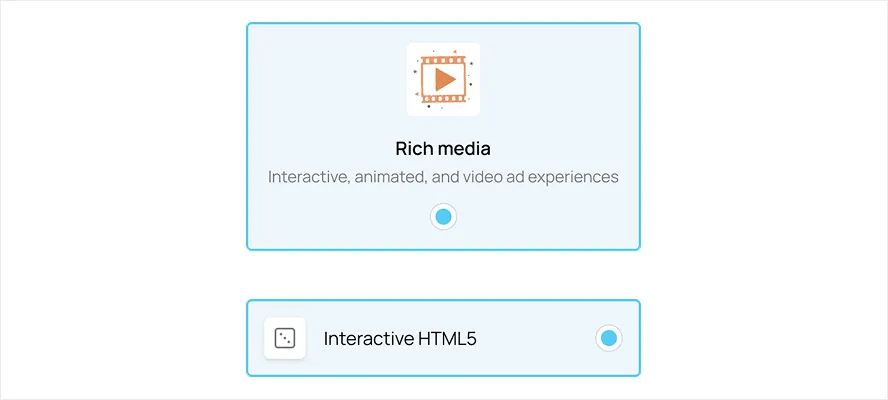
Select Rich media as the ad format, then choose Interactive HTML5 as the banner type.
3
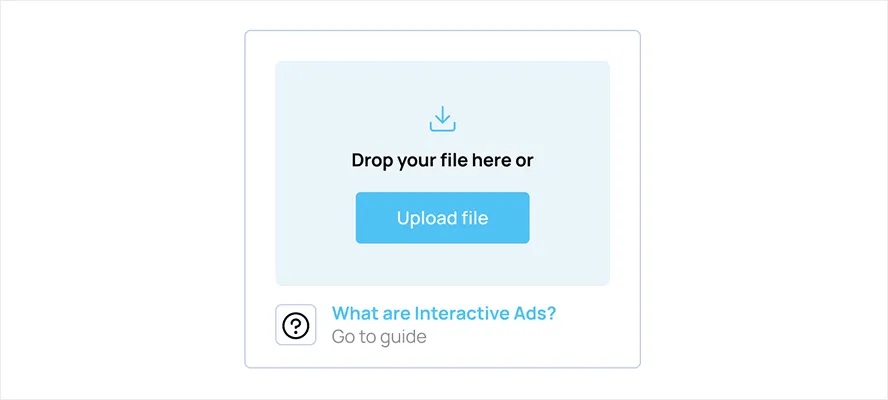
Upload your Interactive HTML5 banner as a ZIP file (see technical requirements and SDK contract below, or simply download the sample). Next, select the banner size and enter a name for your creative.
4
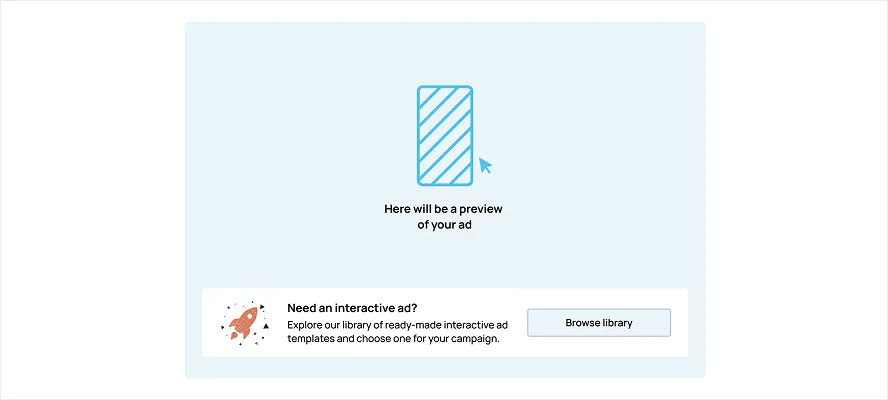
Preview the interactive banner in the sample ad unit window — in-banner clicks must not leave the ad. If the file contains any errors, a validation message will be displayed.
5
When you're ready, click Apply for approval to submit your ad for review. Our support team will review and approve your ad before you can launch it.

Technical requirements for Playable Ads
1
Banners should be uploaded as a ZIP.
2
The size of the archive must not exceed 3 MB.
3
The archive must contain index.html at the root and may include supporting files: JS, CSS, JPG, GIF, PNG, SVG, fonts, audio.
4
Directory and file names may only contain: -._~ , numbers and Latin letters.
5
All asset links must use relative paths. The ad must not make external network requests. Bundle any libraries you need inside the ZIP.
6
Do not use pop-ups, top-level redirects, or frame breakout. Hardcoded store / landing URLs for the final CTA are not allowed — use the Click URL from the cabinet via the SDK.
7
Include js/bitmedia-sdk.js (or an equivalent that exposes Bitmedia.ready / Bitmedia.exitClick) in the archive.
8
Call Bitmedia.ready({ interactive: true }) once after the banner initializes.
9
Call Bitmedia.exitClick() only on the final CTA. In-banner gameplay must stay inside the ad iframe.
10
The creative must behave consistently across environments for the duration of the campaign and must not obfuscate or confuse users.
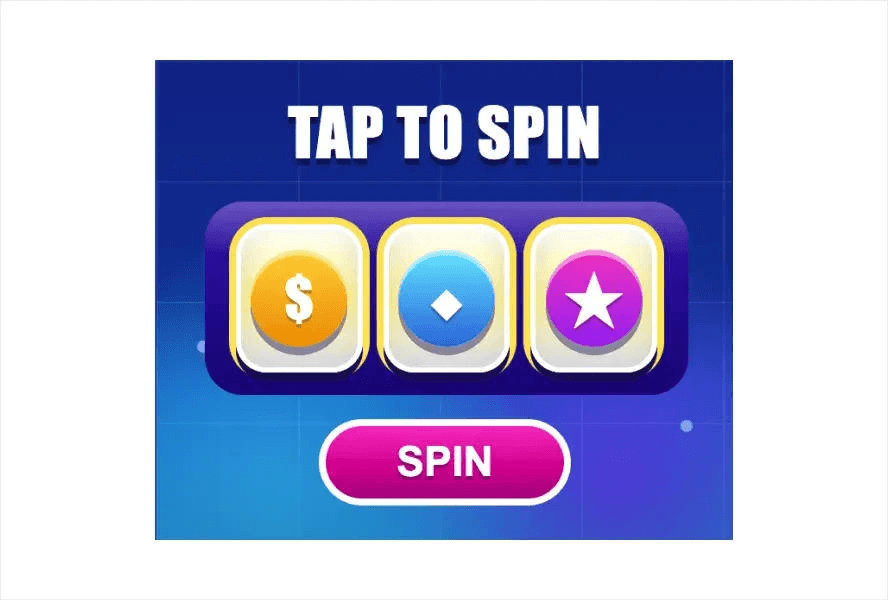

Bitmedia SDK contract
The platform shell listens for postMessage events from your banner. You must use the Bitmedia SDK methods below — do not open the Click URL with window.open or location.assign from the final CTA.
On load (once):
Bitmedia.ready({ interactive: true });On final CTA only:
Bitmedia.exitClick();
Click URL is configured in the advertiser cabinet. The sample ZIP shows a minimal playable game that follows this contract.